Code highlighter & Mathjax
2020年6月10日 星期三
About Space Time
2019年3月21日 星期四
Stochastic Gradient Descent for machine learning clearly explained
Formalizing our machine learning problem
As we try to model the relation between X and Y by a linear function, the set of functions that the learning algorithm is allowed to select is the following :
$$ Y=f(X)=a \times X+b $$and our loss function becomes :
$$ M S E=R_{n}(\beta)=(y-X \beta)^{T}(y-X \beta) $$
The vector beta minimizing our equation can be found by solving the following equation :
$$ \frac{d R_{n}(\beta)}{d \beta}=0 \Leftrightarrow X^{T}(y-X \beta)=0 \Leftrightarrow \beta=\left(X^{T} X\right)^{-1} X^{T} y $$
Our linear regression has only two predictors (a and b), thus X is a n x 2 matrix (where n is the number of observations and 2 the number of predictors). As you can see, to solve the equation we need to calculate the matrix (X^T X) then invert it.
In machine learning, the number of observations is often very high as well as the number of predictors. Consequently, this operation is very expensive in terms of calculation and memory.
Gradient descent algorithm is an iterative optimization algorithm that allows us to find the solution while keeping the computational complexity low. We describe how it works in the next part of this article.
Diving into the Gradient descent principle
- At your current location, you feel the steepness of the hill and find the direction with the steepest slope. The steepest slope corresponds to the gradient of the mean squared error.
- You follow this direction downhill and walk a fixed distance and you stop to check if you are still in the right direction. This fixed distance is the learning rate of the gradient descent algorithm. If you walk for too long, you can miss the village and end up on the slope on the other side of the valley.
- If you don’t walk enough, it will take a very long time to reach the village and there is a risk that you get stuck in a small hole (a local minimum).
- You repeat those steps until a criterion you fixed is met: for instance, the difference in altitude between two steps is very low.
- Initialize a and b values, for instance, a=200 and b=-200
- Compute the gradient of the mean squared error with respect to a and b. The gradient is the direction of the steepest slope at the current location.
Then update values of a and b by subtracting the gradient multiplied by a step size :
$$ \begin{array}{l}a=a-\eta \frac{d R_{n}(a, b)}{d a} \\ b=b-\eta \frac{d R_{n}(a, b)}{d b}\end{array} $$
with η, our fixed step size.
Compute the mean squared loss with the updated values of a and b.
Repeat those steps until a stopping criterion is met. For instance, the decrease of the mean squared loss is lower than a threshold ϵ.
Gradient Descent: will this scale to big data?
At every iteration of the gradient descent algorithm, we have to look at all our training points to compute the gradient.Thus, the time complexity of this algorithm is O(n). It will take a long time to compute for a very large data set. Maybe we could compute an estimate of the gradient instead of looking at all the data points: this algorithm is called minibatch gradient descent.
Minibatch gradient descent consists in using a random subset of size N to determine step direction at each iteration.
- For a large data subset, we get a better estimate of the gradient but the algorithm is slower.
- For a small data subset, we get a worse estimate of the gradient but the algorithm computes the solution faster.
I hope this article has helped you understand this basic optimization algorithm, if you liked it or if you have any question don’t hesitate to comment!
2019年2月11日 星期一
Fuck Off Bad Commit Messages
We’ve All Seen It…
You’re working on a project and it uses Git for version control.
You’ve just finished making a change, and you want to quickly update your branch.
So, you open up your terminal, and with a few quick commands, you update your remote branch with your changes.
git add . git commit -m "added new feature" git push
But then you do a bit of testing and find that you have a bug in your implementation.
No worries — you quickly find a fix and make another commit to fix the problem.
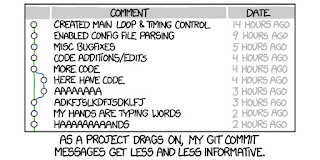
git add . git commit -m "fix bug" git pushYou repeat this process a few times, and now you end up with a git commit log that looks like:
At the moment, this seems fine to you.
After all, you just worked on it, and you can easily explain what was worked on — even if the messages don’t clearly convey it. The Problem
A few months pass, and now, another developer is looking back through the changes you made.
They try to understand the high-level details of your changes, but since the commit messages are not descriptive, they cannot glean any information.
They then resort to reading through each commit’s diff. However, even after doing so, they still cannot identify the thought process behind the choices that you made in your implementation.
Now, since software engineering is a collaborative process and the git blame operation exists, they find out who made these changes and start asking you questions about your implementation.
However, since it was so long ago, you don’t remember much. You check back through your commits, and you no longer remember the logic behind the implementation decisions made in that project.
You send your colleague a sad emoji on Slack (😔) and tell them that you can’t provide any more information than what they already have.
Writing Good Commit Messages
Hopefully, the above situation has demonstrated why it is important to write good, informative git commit messages.
In a field as collaborative as software engineering, it is imperative that we make it easy for collaborators to quickly gain context into our work.
Ideally, a good commit message will be structured into three parts — the subject, the body, and the closing line.
Subject line
The subject should be a single line that summarizes your commit’s changes.
It should be written in the imperative tense, begin with a capital letter, not end with a period, and be 50 characters or less.
A good subject line will complete the sentence “This commit will …”.
A good commit message, like “add new neural network model to back-end”, nicely finishes the sentence.
A bad commit message, such as “fix bug”, does not complete the sentence very nicely, producing the awkward sentence “This commit will fix bug”.
Body
The body contains the meat of your message and is where you can go into details regarding your changes. Note that for some very small commits, such as fixing a typo, you probably won’t need a body, as the subject line should be informative enough.
In the body, you should go into more details about the changes you are making, and explain the context of what you are doing.
You can explain why you are making these changes, why you are choosing to implement the changes in this particular way, and anything else that would help people understand the thought process behind your commit.
Try not to repeat things that are obvious from the code changes in the diff. There is no need to provide a line-by-line explanation of your changes. Focus on covering more high-level details that may not be obvious from reading the code. The goal is ultimately to provide context into the development process around this change, which primarily concerns its motivations and goals.
Closing line
Finally, the closing line is the last line of your commit message.
This is where you can put useful meta-data regarding your commit, such as JIRA ticket numbers, GitHub issue numbers, co-author names, and additional links.
This can help to link important information together that relates to your change.
2018年6月10日 星期日
How I Became A Keyboard Warrior(How I stopped using mouse)
I’m sure you have seen this interesting rift between programmers that goes beyond the friendly competition about who favors which IDE or which programming language has the nicer syntax — the rift that extends to the very core of how we navigate the systems in front of us.
In essence, there are two kinds of people when it comes to computer navigation: Those who rely on the mouse and can’t understand why anyone would rather type text and on the other side, there’s us few who have seen the light and prefer using the keyboard as much as possible. Here are some good reasons.
Keyboard is MUCH faster (Once you get used to it)
If I need to convince you, let me give you the easiest of examples that probably everyone understands: Control-C/V instead of reaching for the mouse, right-clicking, finding the right menu item in a million of choices, then doing it all again for the pasting. Nearly everyone I know has long understood to use the keyboard for copy/pasting, even the non-IT staff.But this is just the tip of the iceberg, and most people still need the mouse to select the text in the first place (instead of using control-shift-arrows or shift-end/Home). Most people also backspace individual typos instead of control-backspacing and retyping the whole word. Many also use the mouse to switch between active windows instead of alt-tabbing.
It is hard to explain to people how something so simple as using the mouse wastes a lot of time that most people don’t even recognize. It seems like no time at all, but I can guarantee you that most people waste an hour or even more every single day this way. Wouldn’t you rather do something else with that time, either slack off or get more work done?
Navigating text with your keyboard
For how simple it is a surprising amount of people do not make use of the basic, default options that your computer gives you: Navigating text efficiently.
Almost every text editor allows you to do these simple things that still save you hours of time over the course of your life:
Control-Backspace / Control-Delete will eradicate the left/right word without the need to individually backspace each letter.
Shift plus your arrow keys lets you select text with the keyboard, add control in there and you can select whole words. Use shift and Home/End to select a whole line, use them without shift to jump to the end or start of a line. This way you can press Home-Shift-End-Backspace and a whole line is gone in a second.
Control-UpArrow will jump up a Paragraph in many text editors, something that I don’t use much but it’s a little faster than using just the UpArrow.
Control-F allows you to find words, it also allows to quickly jump down to a specific part of a website or long document when you know what you are searching for. Control-H lets you open the same window and replace words / phrases in most pograms.
Control-Home/End allow you to jump to the beginning/end of the document which is very useful if you went back to correct a sentence or something and then want to continue writing at the end of the document.
Navigating your browser (for beginners)
Almost everyone I know relies on the mouse to use their browsers, it seems like hardly everyone even knows you can use Control-L to jump to the search / URL bar and type up a website URL.
Control-T will open a new tab
Control-W will close the current tab.
Control-1 through 8 will cycle through open tabs, control-9 will always jump to the last open tab to the very right.
Control-PageUp/Down will cycle through your open tabs, just PageUp/Down will allow you to scroll the page.
Speaking of scrolling the page: You can scroll down by just pressing the space bar which is easily the most convenient way to scroll down while your other hand is busy…holding the water bottle that you use to hydrate well enough and be more responsible than your peers.
Control-R reloads the page and is a little easier to reach than F5 which does the same thing.
Your URL bar is also your search bar, if you type www.google.com into your search bar to then reach for the mouse, click the already open search bar, then type the word you were actually looking for please just stop doing that.
Navigating your browser (advanced)
This requires you to get a little (chrome) plugin called Vimium and it’s the best thing since sliced bread.
It allows you to navigate, scroll, find and click links on the site all without using your mouse. If you are aware of how multi-shortcuts work in IDEs like VS/VSCode/Jetbrains then it will be second nature to you, if not it’s quite easy to get the hang of it:
A shortcut like “Ctrl-KD” means you will press control, keep it down, then press K, then D and your code will be beautifully formatted if you happen to be in Visual Studio. This is confusing at first, but it’s the greatest thing that ever happened in my life because it means that almost all functions in most programs I use now come with shortcuts and I can remember those I need most frequently. Then, if I really don’t remember something I can always go back to using the mouse, aimlessly searching through windows, menu bars, option choices until I figure out where that stupid little function is hiding.
With Vimium you simply press “F” and the page looks like this:

Then you can simply take a look at the link you want to open, press “P” to find out why your wife has grown all cold with you and why she is much nicer to the neighbor who knows how to fix actual real life things and probably can’t use a keyboard as well as you can.
There are other great shortcuts, but this combined with the beginner section is what I use the most. The other one is that j/k will allow you to smoothly scroll up and down the page, that’s quite nice whenever the space bar is too fast and too furious.
Your Windows Explorer is just like a web browser
One thing that many people don’t realize is that your Windows Explorer can be navigated just fine with the keyboard as well.
WindowsKey-E opens the thing.
Using tab, shift, arrow keys you can select files, delete them, use F2 to rename.
With those out of the way it’s time to become a console wizard
I don’t know if you ever had the luxury of watching a console wizard in action, those people who will randomly say things like “yeah, just cd into that folder and run the build.ps1 and the errors should resolve”.
They do not quite grasp why that sounds confusing to many people, even hardened developers. I mean, if you don’t cd into that folder, then how do you even work?
A pipe isn’t something you light after work, you use it during work to chain up commands. Sure, Git has some GUI editors but really why would you? Just open up a powershell or cmd, type git commit and don’t forget to add a descriptive commit message like “fixed the bug”.
If you are in VS Code you get an integrated terminal which sounds pretty useless until you start using it. I’m on a German keyboard layout so it takes just a press of Control-Ö to open it, easy to remember as the German word for terminal is Ökonsole. It’s very environmentally friendly, Control-P will open the command “P”alette where you can quickly access all common features of VS Code.
Tab will serve as an auto-complete for console commands, pressing tab multiple times toggles between the options and shift-tab goes back an option if you were thinking too quickly again and need to backtrack a little.
Using the UpArrow gives you the last used command so you can fix your stupid typo and if you accidentally committed your changes to the master branch you can just use git -unfuck -everything and it will all work without any rebasing or merging.
Avoid preaching, anyone who’s ready to convert will come and ask
The simple truth about life in general, keyboard usage, in particular, is this: Your words won’t change anyone’s opinion. If you read this far it’s not because of my words, but because you previously watched someone do keyboard wizardry and realized how quick it can be.
You were already curious and all I did was to show you the way, lead you astray and now it’s happened and you don’t look at the other gender with the same eyes anymore. They don’t react to your touches the way your keyboard does, they don’t understand you the way your computer does.
Congratulations, you have completed the journey, and even if your beard isn’t grey yet or you can’t even grow one you have achieved sufficient wisdom to be called a Greybeard. Go live in a mountain somewhere and wait until those who seek wisdom come to you.
2015年3月1日 星期日
What Is SNI? Encrypted SNI (ESNI and ECH)

When a piece of server software wants to make itself available to clients via the network, it binds to a socket. A socket is simply the IP address and port combination the server software listens on for connections. (Most commonly server software chooses to listen on a particular port across all available network interfaces). What happens though if a particular server wants to serve multiple, different sites from the same server on the same port? One option would be to assign the server multiple IP addresses, but this introduces administrative complexity. Another option would be to interrogate the contents of the traffic coming into the server in order to make a decision as to which site the traffic should rightfully route to. While feasible for un-encrypted traffic, encryption quickly thwarts this strategy.
What is SNI
Server Name Indication (SNI) is a commonly supported extension to TLS which acts as a “selector” allowing the client to specify a particular host header. It was first defined in RFC 3546. The destination server uses this information in order to properly route traffic to the intended service. SNI is most commonly used for HTTPS traffic, but this extension can be used with other services wrapped in SSL/TLS as well. SNI information is sent in the client’s initial ClientHello message (part of the SSL/TLS handshake).
An inherently flawed approach
It is a recurring theme that as the years go by, computer security becomes ever more important. Long gone are the days where we build protocols without considering transport encryption (looking at you SMTP!), but only recently has the concept of a “zero trust” network become something we are all trying to achieve. We must constantly reevaluate our underlying assumptions and the things which we take for granted. In much the same way it is no longer considered reasonably secure to terminate SSL/TLS at your enterprise edge and allow traffic to reach your backing servers over HTTP, announcing to an attacker listening on the wire what service you are connecting to is unwise, albeit only in hindsight. As the internet becomes more and more politicized, in some parts of the world, visiting a particular website can be quite literally a matter of life and death.
Unfortunately, by the time this was considered, it was much too late to fix. Versions of TLS before 1.3 include the certificate sent by the server in clear text as well, so even if the SNI value were to be encrypted, it would be for naught. Note that while the server certificate portion was moved to the encrypted portion of the handshake, there still remains an un-encrypted portion of the SSL/TLS handshake which can leak other information potentially useful to attackers.
ESNI and ECH: A long overdue overhaul
TLS 1.3 sends the server certificate later on in the conversation, no longer exposing the endpoint a user is visiting in the plaintext portion of its response. This signaled that it was time to reevaluate SNI, and Encrypted SNI (ESNI) was born. ESNI relies on a server publishing a DNS record specifying a public key. From there, Diffie-Hellman is used to agree upon a symmetric key suitable for encrypting the SNI value in the Client Hello. Astute readers will realize that DNS is also a historically plaintext information exchange, and replacing a plaintext piece of information in the ClientHello with a plaintext DNS call adds no value. ESNI is expected to be used in conjunction with DNS-over-HTTPS (DOH) or DNS-over-TLS (DOT), closing the loop.
ESNI has been supported by popular browsers and sites since 2018, but it too is not without its flaws. ESNI, simply put, is not prescriptive enough regarding how to handle or mitigate failures, leading to inconsistent server behavior making it difficult to write reliable clients. Cloudflare, who has been at the fore of the move to ESNI, has pivoted their stance and now champions something called Encrypted Client Hello (ECH). This proposed standard would encrypt the entire handshake using a similar but more prescriptive scheme, solving two problems at once by fixing the flaws of ESNI and removing the plaintext initial handshake altogether. ECH also relies on DNS and relies equally on DOH or DOT.
Conclusion
The internet has always been a hodge-podge of confusing and competing standards. There is something exquisitely Darwinian about the whole affair, and in the coming months and years we will see whether ECH truly accomplishes the goals it sets out to achieve or whether other, unexpected challenges prevent wide adoption. One thing is clear however, the cadence at which fundamental technologies change is only speeding up.